How to pay with Bankily B-Pay
Follow these simple steps to complete your payment via Bankily B-Pay.
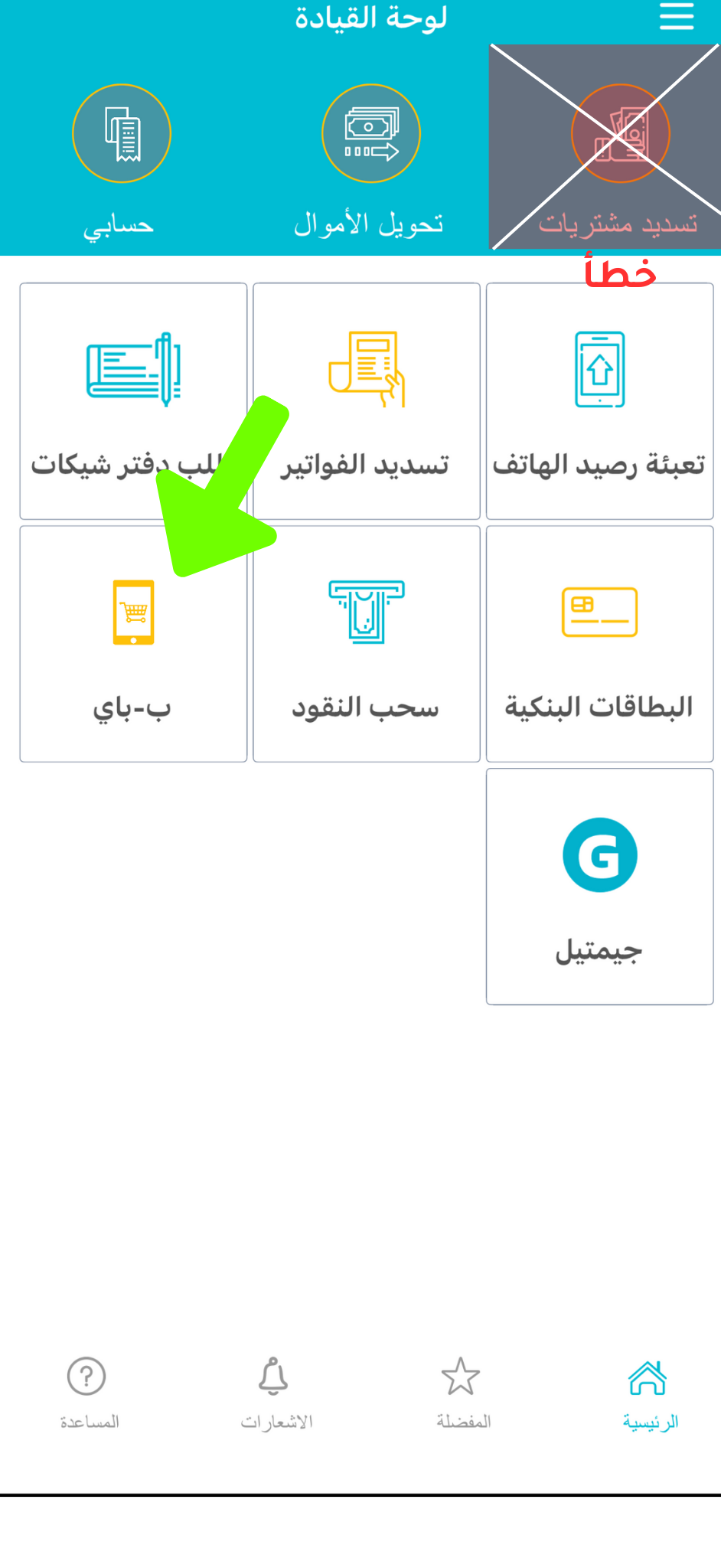
Open Bankily and go to B-Pay
From the main menu in the Bankily app, choose the B-Pay electronic payment service. Make sure you select "Electronic payment" and not "Bill payment" to get the right service.
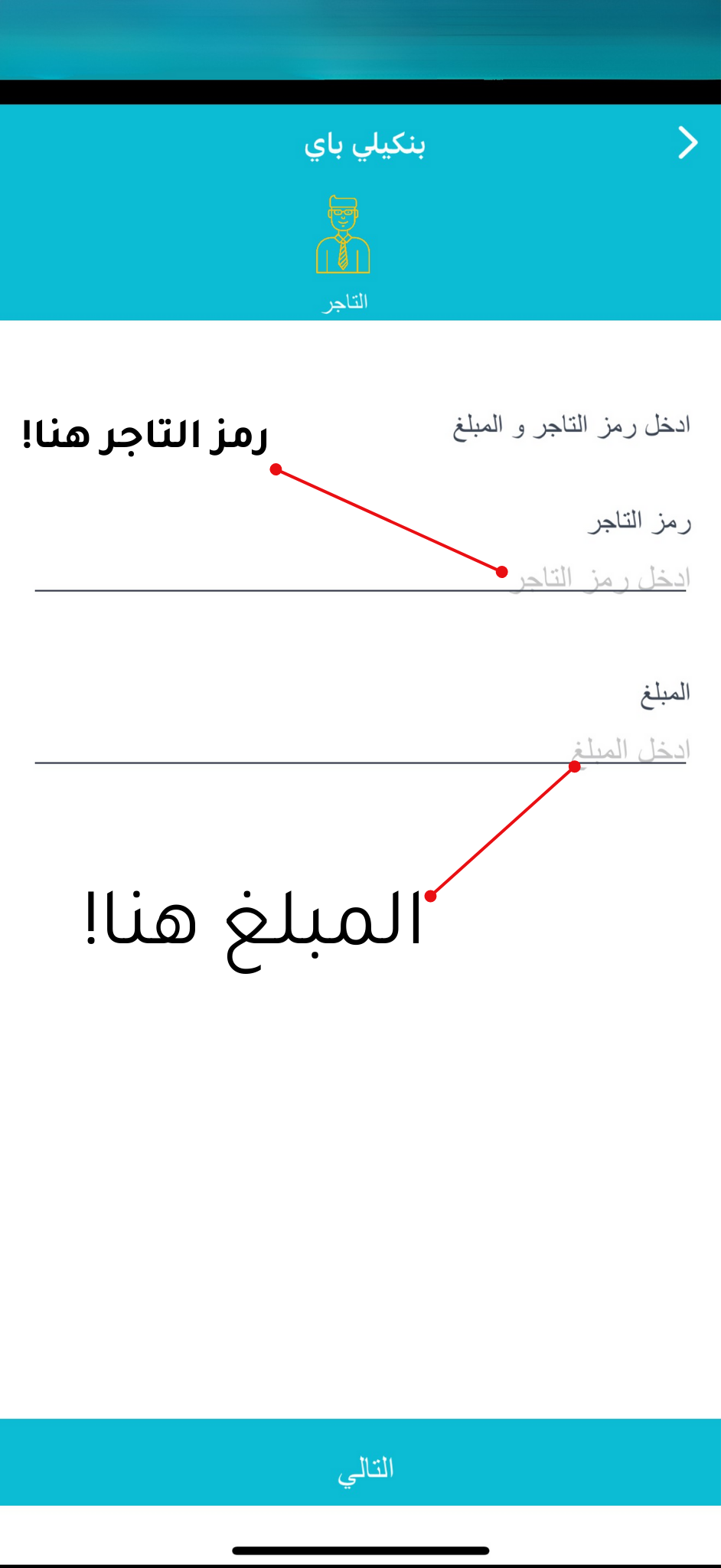
Enter the merchant code and amount
Enter Bedel's merchant code in the field provided, then enter the amount to pay. Double-check the details to avoid any issues with the transaction.
Very important
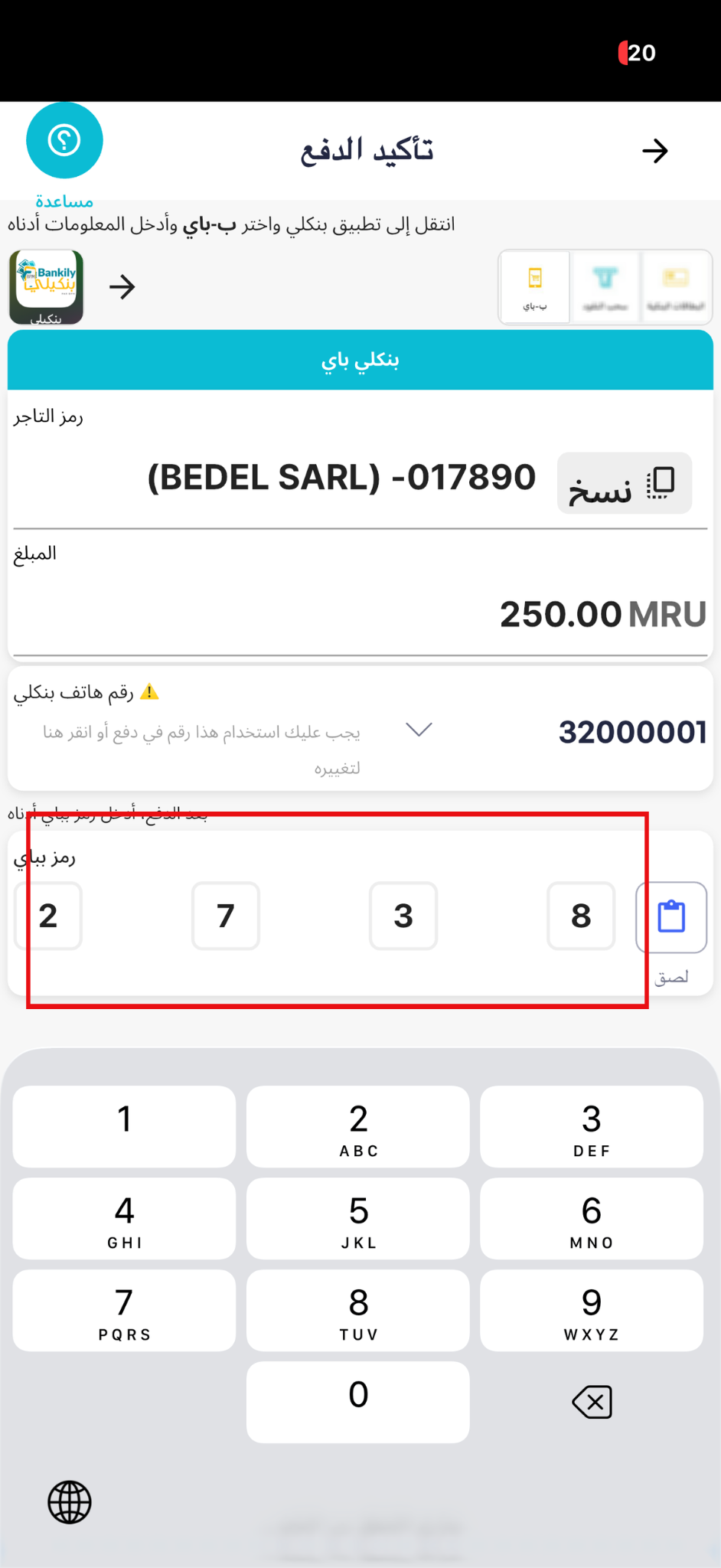
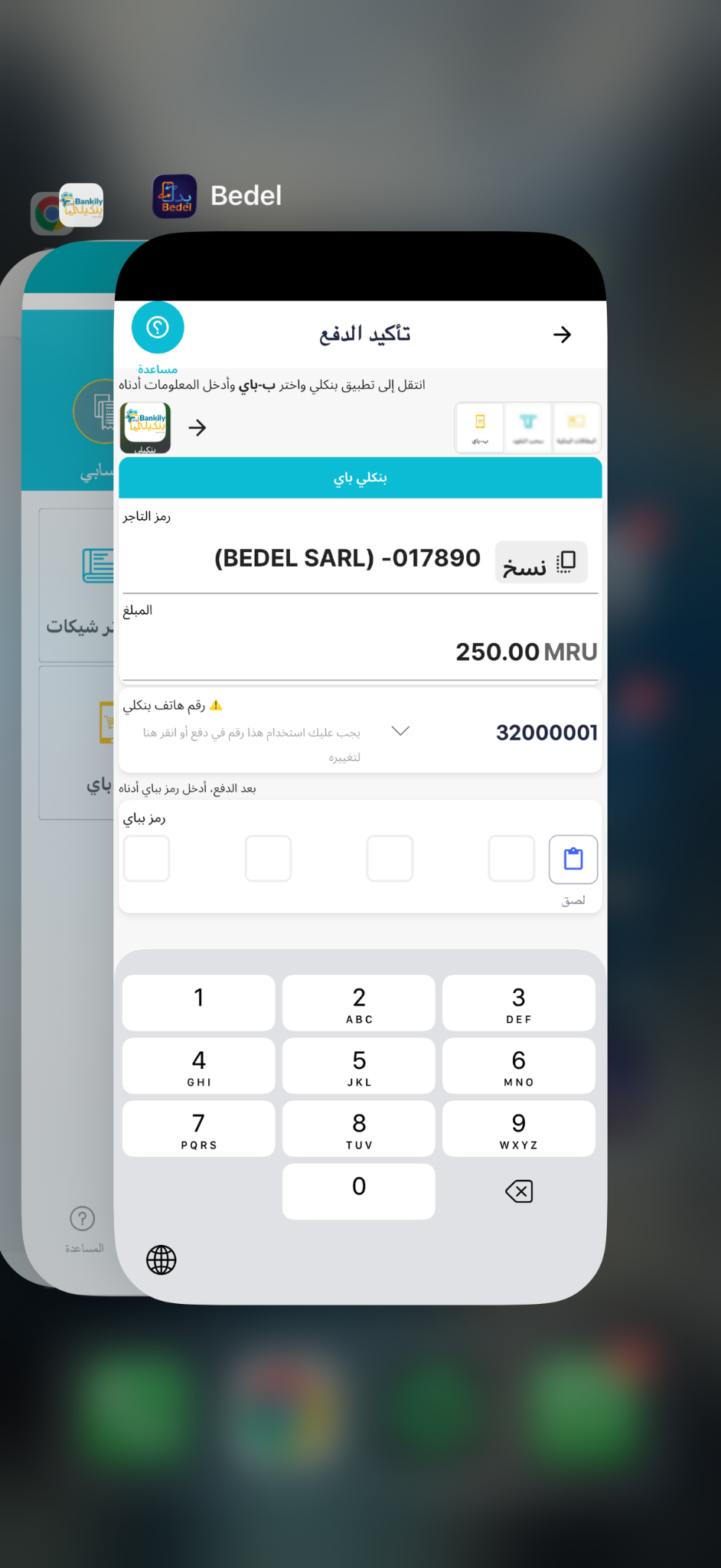
The phone number you pay with in Bankily must match the phone number on the payment page. If it differs, tap the phone number on the payment page and select the number you will pay with.
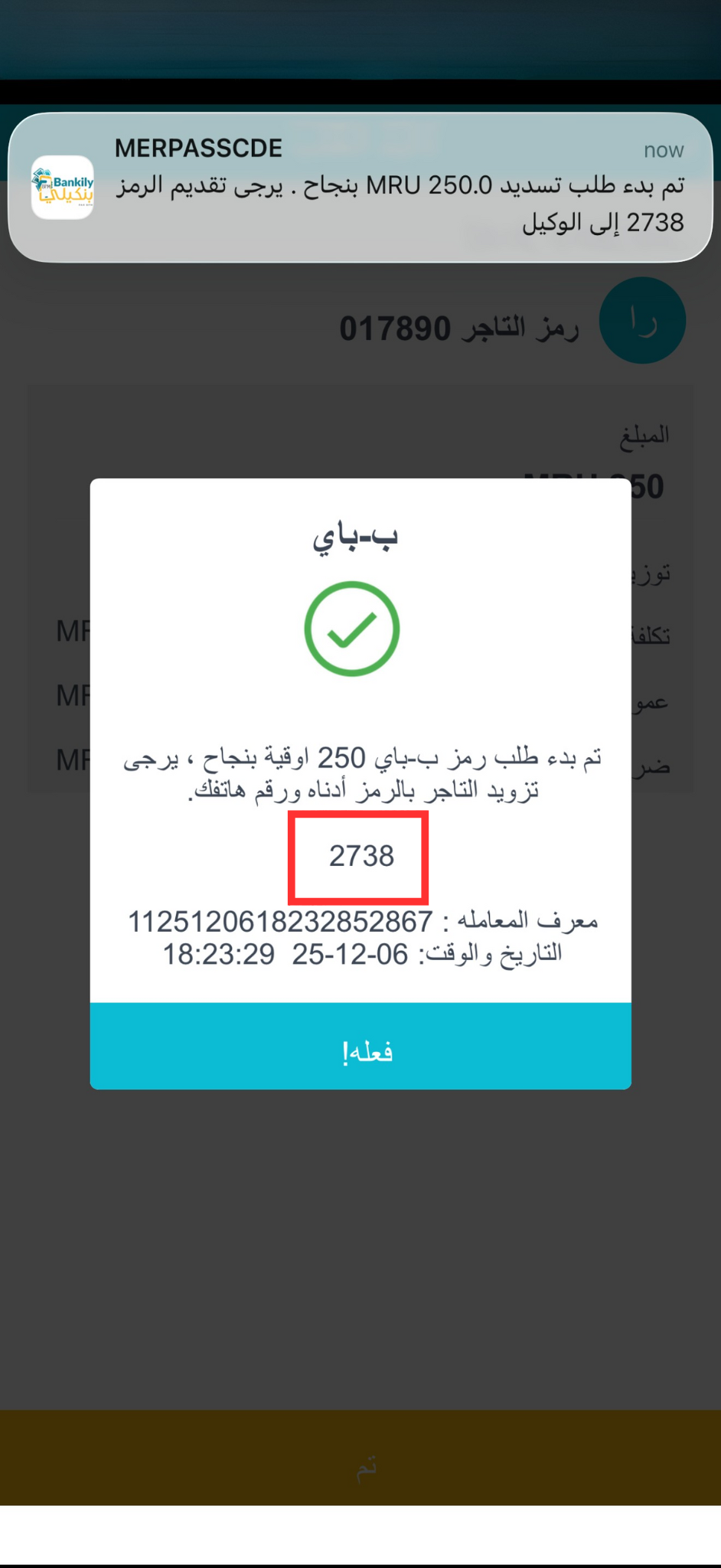
Get the 4-digit B-Pay code
After confirming the details and amount, you will receive a unique 4-digit B-Pay code. Save this code — you will need it in the next step.
Return to Bedel and enter the code
Open the Bedel app and enter the 4-digit B-Pay code in the field provided. Once entered successfully, you will get instant confirmation that the payment is complete.